


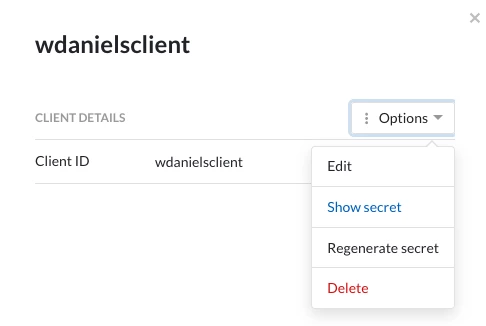
If you are using TrendMiner APIs to access context items (for example to pull them into PowerBI), it makes sense to set up a client user for this purpose. In fact, it is recommended to use a distinct client for every TrendMiner automation you set up. These clients can be configured by a system administrator in ConfigHub.
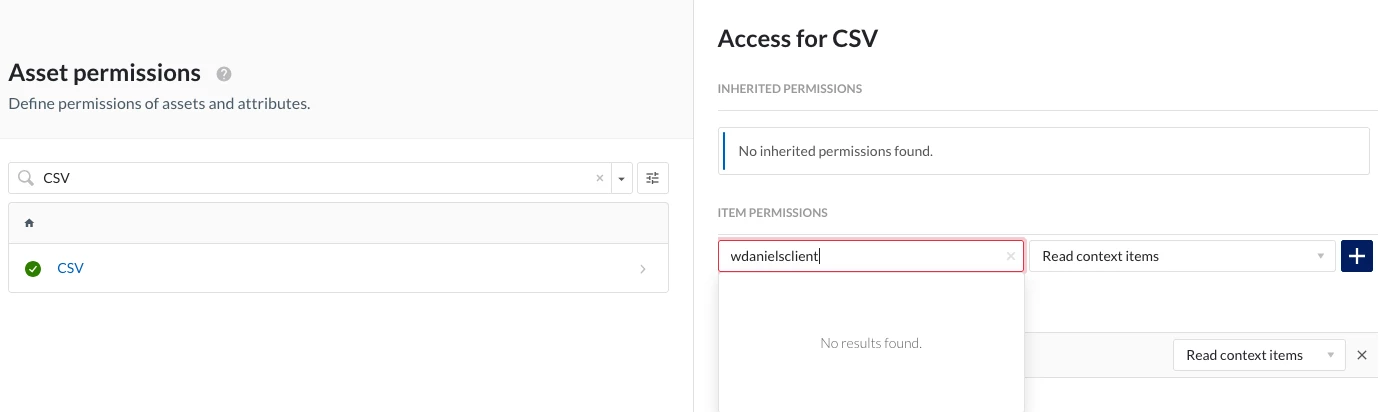
After setting up authentication via your new client id + secret, you may notice that you cannot access some context items. This is because they are attached to assets to which the client does not have any access rights. These asset permissions can be granted by an application administrator in ContextHub. There is an issue, however: the user search UI does not retrieve client users, and so there seems to be no way to grant permissions to our client user.
Thankfully, such a limitation does not exist in the back end. Through a series of API calls, we can configure our client to have the required permissions. In this example I use the built-in API console (accessible by adding /rest-api/ to your base url).
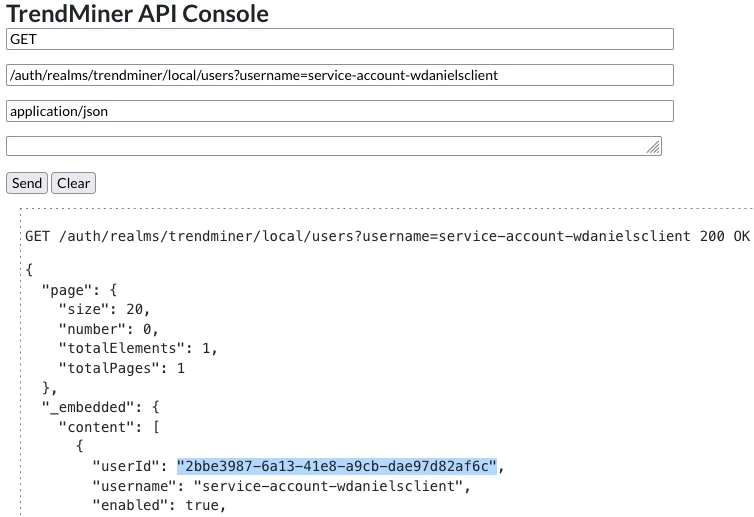
First, we will need the identifier of our client user. We can retrieve the identifier by the user name, but there is one caveat: the name of a client user is actually service-account-<client id>. Knowing this, I can send a GET request to /auth/realms/trendminer/local/users?username=service-account-wdanielsclient to retrieve the needed userId.
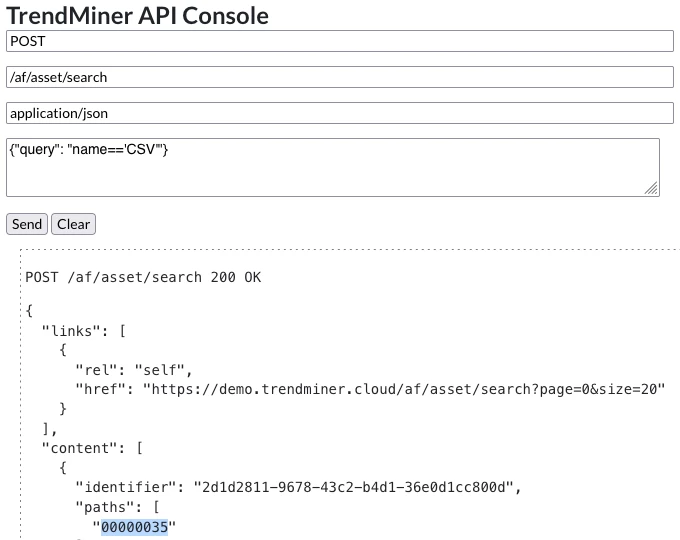
We then need to do something similar to get the identifier of the asset to which we need to grant permissions. In this case it is a POST request to /af/asset/search, to which we give a query that uses the asset's name. For giving the permissions, we actually need the returned path of the asset, not the identifier.
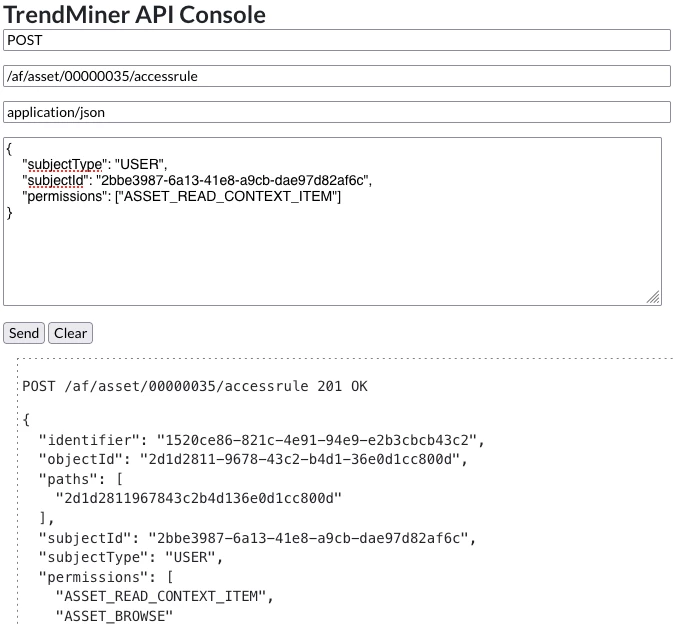
With our user ID and asset path at hand, we can do the POST request to /af/asset/<path>/accessrule which will actually grant the permissions. We will need to give it the userId as subjectId, the subjectType will be USER, and the permission we need for reading the context items is "ASSET_READ_CONTEXT_ITEM".
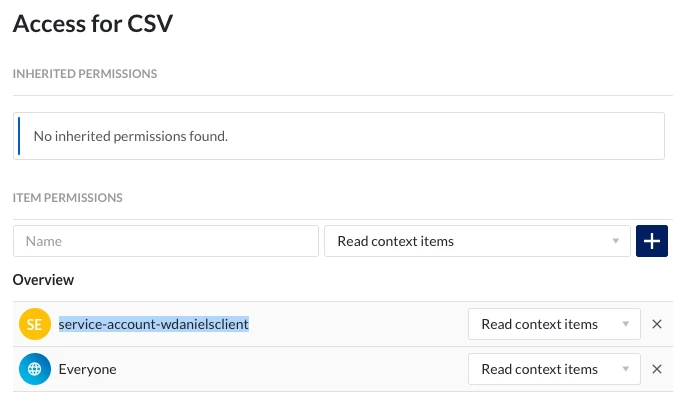
After completing the request, we can confirm in the UI that the access was actually granted: