



The TrendMiner AI works with your process data whether you open the TrendMiner Agent right inside TrendMiner or use your company’s AI assistant, such as Copilot, ChatGPT or Claude, through the TrendMiner MCP server. It can search for events, run calculations and show you the result in TrendHub. How useful the answer is depends mostly on how clearly you ask, and a few simple habits make a big difference.
Write your prompt for a colleague on their first day
Think of the AI as a very capable colleague on their first day at your site. They understand process engineering and know every corner of TrendMiner, but they have no idea which tags belong to which unit, what your operating limits are or what you’re actually trying to find out. Anything you would tell that colleague before they start, tell the AI.
The six ingredients of a good prompt
- Context: which unit, and what question you’re trying to answer, e.g. “low yield on the last three batches in reactor R1”
- Exact tags: the full tag name as it appears in TrendMiner, prefix included, e.g. “TM5-BP2-CONC.1” instead of “the concentration”
- Tag roles: how many tags are involved and what each one is for, e.g. “one condition tag, two to calculate on”
- Thresholds: turn words like “high”, “open” or “running” into a number with a unit, e.g. “above 80 %”, “the valve counts as open when the value is > 0”
- Period: the time window, with dates and year where it matters, e.g. “last 7 days”, “1 to 7 October 2026”
- Outcome: what the result should contain and how you want it, e.g. “duration and max per event in a table, then show it in TrendHub”
From weak to strong prompts
❌ “Did the cooling water run too warm?”
✅ “Find all periods in the last 7 days where CW_SUPPLY_TEMP exceeded 30 °C. Report the total time above 30 °C and the highest temperature reached.”
❌ “Why was the concentration high?”
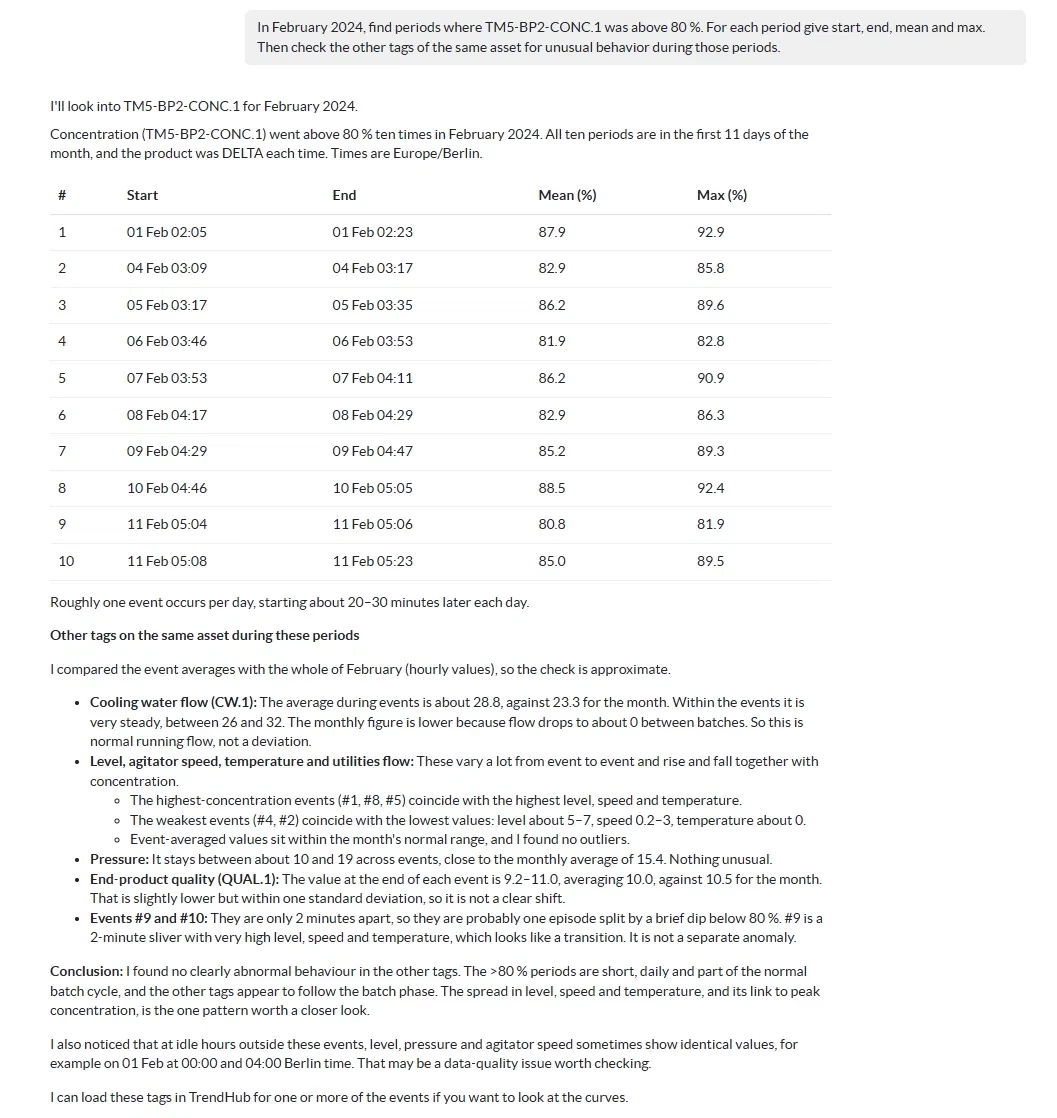
✅ “In February 2024, find periods where TM5-BP2-CONC.1 was above 80 %. For each period give start, end, mean and max. Then check the other tags of the same asset for unusual behavior during those periods.”
❌ “Show me the batches.”
✅ “Treat a batch as running whenever BA_R1_BTACT = 1. For the last 2 weeks, list every batch with its duration and the maximum BA_R1_TEMP.”
❌ “Analyze the pump.”
✅ “For pump P-101 last month, compare the average discharge pressure (P101_PDIS) on days with flow (P101_FLOW) above 50 m3/h with days below 50 m3/h.”
With the weak prompts, the AI has to guess which tag you mean, what counts as too warm or too high, what a batch is and which period you’re interested in. The strong versions answer those questions up front.
Two habits worth building
👉 Let it explain before it calculates. End your prompt with: “First tell me which tags, limits, period and steps you plan to use, and wait for my go-ahead.” A wrong assumption is much easier to fix at this point than after the analysis has run.
👉 Share supporting material. If you work with your own AI assistant via MCP and it accepts files, add what helps explain the situation: a TrendHub screenshot, a P&ID, a tag list or your operating limits. Always write the tag names in the prompt as well, since the AI may misread them in an image. And stick to your company’s data policy.
Build up the analysis in small steps
Ask one thing, check the answer, then go one level deeper. This is a real example from a waste stream analysis (tag names are placeholders):
- “Over the last 3 days, find periods where valve WW_VALVE_POS is open (value > 0). Give the max of counter WW_BATCH_CNT per period.”
- “Show the values with two decimals and sum them per day.”
- “Give the mean amount over 24 hours.”
- “Calculate the full cycle duration, start to start, and the number of cycles per day.”
- “Give me a TrendHub link so I can check the result.”
The whole analysis took about 18 minutes, compared to 1.5 to 2 hours in Excel, and the engineer used the result to set a control valve.
Each prompt is short, names the tag, gives a number for the condition and builds on the previous answer. Before a result ends up in a report or drives a decision, check it against the trend in TrendHub. And when a prompt works well, save it for next time.
TrendMiner Agent or MCP: what’s different?
The prompting rules are the same, and both routes use the same TrendMiner data and analytics tools. There are a few differences, though:
👉 The Agent works right next to your view. It understands what’s on your screen and can act in TrendMiner for you: open views, add tags to TrendHub and change the time range. You find it under AI Agent in the TrendHub top bar. It requires a license assigned to your user account, so if you don’t see it, ask your administrator.
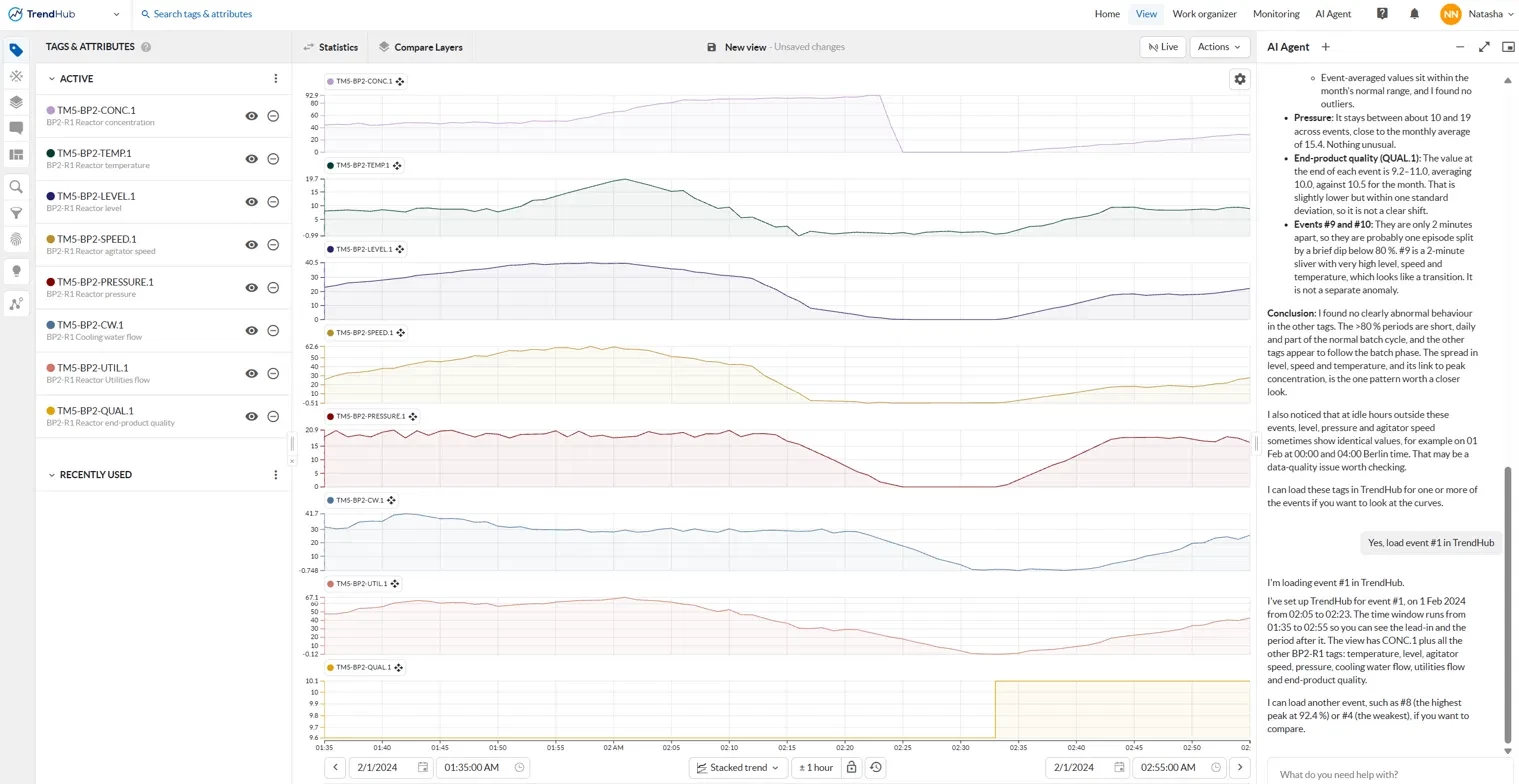
👉 With MCP, you stay in your own assistant. Ask it to show the result in TrendHub, and it loads the tags and time range in TrendMiner so you can check them yourself.
👉 Both can explain TrendMiner. Ask “how do I…” questions, for example how to build a Formula Tag or set up a monitor, instead of searching the documentation.
👉 Both can use your context data. If batches, shutdowns or maintenance events are stored as Context Items, point the AI to them: “Use the Context Type Batch for reactor R1” is often more reliable than describing a batch with a tag condition.
Prompt template to copy
Context: [unit / process] - I want to [investigate / quantify / compare] [what].

Tags ([number] in total):
- Condition tag: [exact tag name] - [what it measures, unit]
- Tags to calculate on: [exact tag name], [exact tag name]

Condition: [tag] [above / below / equal to] [value + unit]
Period: [e.g. last 7 days, or 1 to 7 October 2026]

Outcome: for each event give [start, end, duration, mean / max of tag],
as a table, plus a TrendHub link with these tags and period.

Before you start, tell me how you understand the case and the steps
you will take. Wait for my OK.
Both the TrendMiner Agent (new in 2026.R3) and the MCP server are available on request. Reach out to your CSM or Account Executive to get started.
👉 User Guide – TrendMiner Agent
👉 User Guide – MCP Connection
👉 2026.R3 Innovation Highlights
👉 Use case: Monitor review at scale with AI
What prompts have worked well for you? Share them in the comments!
Thanks to
Best regards,
Natasha