


Collaboration is at the heart of successful industrial analytics. Over the past year, TrendMiner has transformed how teams share and manage their work, evolving from simple read-only sharing to a comprehensive collaboration suite. This article walks you through these improvements and shows you how to leverage them for more effective teamwork.
The Journey: From Simple to Sophisticated
Before 2025.R2: Read-Only Sharing
Initially, TrendMiner allowed users to share individual work items with read-only access. While this enabled knowledge sharing, it had limitations: recipients could view analyses but couldn't contribute or modify them, making true collaboration difficult for teams working across shifts or locations.
2025.R2: Write Permissions
The August 2025 release marked a significant milestone by introducing Write Permissions. Users could now grant colleagues write access to work items, enabling multiple team members to actively collaborate on the same analysis. This was particularly valuable for:
- Teams spread across different time zones or working on rotating shifts
- Collaborative projects like team dashboards where multiple contributors need to add and modify content
- Shared analyses that evolve over time with input from different experts
2025.R3: Sharing with User Groups
This release introduced the ability to share with entire user groups instead of individual users. Rather than adding team members one by one, you could now grant permissions to pre-defined groups with a single action. This dramatically reduced administrative overhead and ensured consistent access across teams.
2025.R4: Folder Sharing and Manage Permission
The latest release elevated collaboration even further with two major additions:
Folder Sharing: Share entire folder structures instead of individual items. Your team gains access to organized collections of analyses and dashboards, maintaining context and structure.
Manage Permission: Owners can now delegate management responsibilities by granting "Manage" permission. This allows colleagues to co-manage shared content, maintain folders, and even share resources on your behalf.
Understanding Permission Levels
TrendMiner now offers four distinct permission levels, each unlocking specific capabilities:
Owner Permission
The highest level, automatically granted when you create an item. Owners have complete control and can perform all actions on their items.
Manage Permission (New in 2025.R4)
Users with Manage permission can:
- Rename, delete, and move items and folders
- Share or unshare resources with others
- Maintain folder structures on the owner's behalf
- Access all underlying items within shared folders
Write Permission
Write permission enables:
- Opening and editing work items
- Making changes to analyses and dashboards
- Using items in your own work
- Browsing and searching within shared folders
Users with Write permission cannot modify folder structures, rename items, or change resource details.
Read Permission
Read permission provides:
- View-only access to work items
- Ability to browse folder structures
- Search and filter capabilities
- Access to view underlying items
Important Note: Even with Read-only permission, users can save a copy of the shared item to their own workspace and make their own modifications. The original item remains unchanged, but users can create their own version to customize as needed.
Practical Sharing Workflows
Folder Sharing: When you share a folder, the permission level applies to the entire folder structure, including all subfolders and items within. This is ideal for giving teams access to complete project structures.
How to Share Items and Folders
You can share from two locations: the Work Organizer or directly from within the item itself.
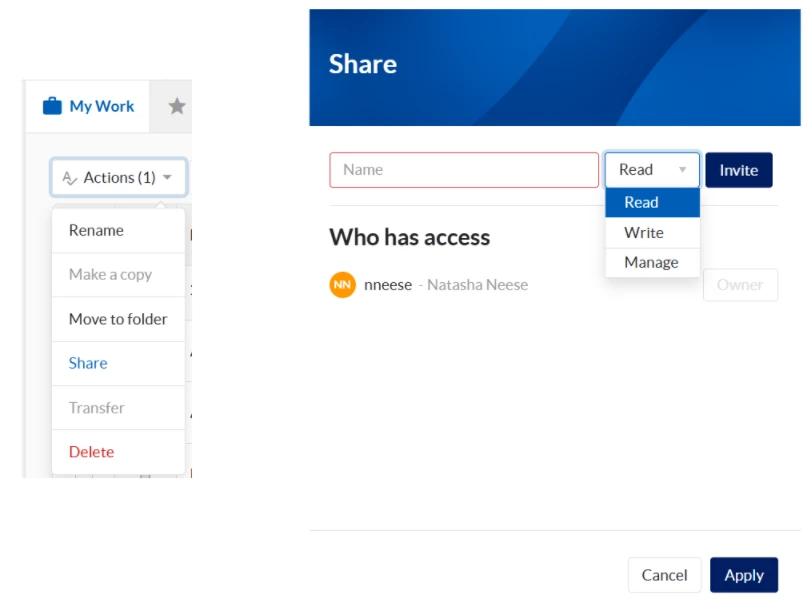
Sharing from Work Organizer:
- Select the work item(s) or folder(s)
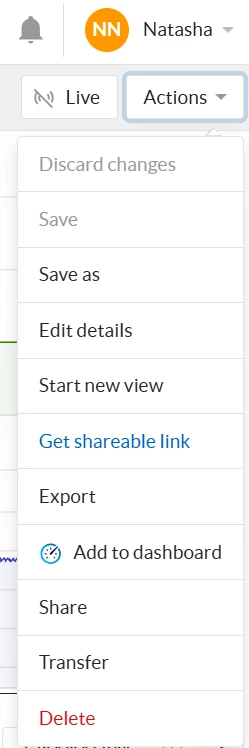
- Open the Actions menu and choose "Share"
- In the Share modal:
- Search for and select users or user groups
- Choose the permission level (Read, Write, or Manage)
- Click "Invite"
- Click "Apply" to confirm
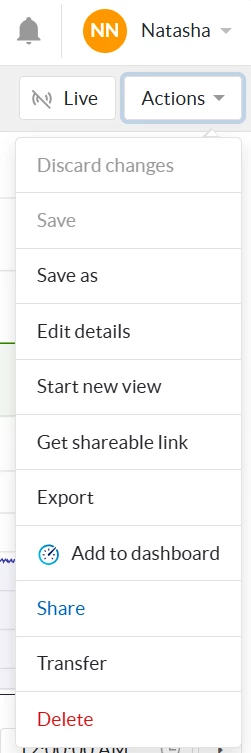
Sharing from an open item: For saved TrendHub views, DashHub dashboards, and ContextHub views, you can also share directly from the open item:
- Open the saved view or dashboard
- Go to Actions → Share
- Follow the same steps as above
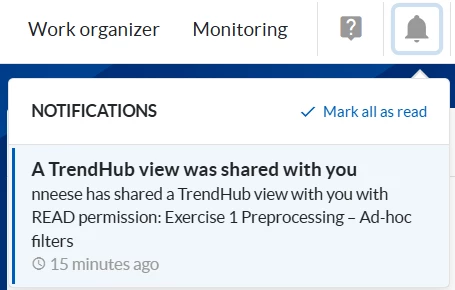
Notifications: When you share an item, recipients receive a notification through the notification center (bell icon). The notification is clickable and takes them directly to the shared item.
Finding shared items: All items that have been shared with you are accessible in the Work Organizer under the "Shared with me" tab. This provides a central location to find all content that colleagues have shared with you.

Extra Tip - Get Shareable Link (TrendHub only): For TrendHub views, you can also use "Get shareable link" from the Actions menu. This creates a direct link to the view that you can share via email or chat. This works for both saved and unsaved views, making it perfect for quick ad-hoc sharing without formal permissions.
Sharing with User Groups: Instead of selecting individual users, you can type in the name of a user group. When you grant permission to a group, all members of that group automatically receive the specified access level. This is especially powerful when:
- Onboarding new team members
- Managing department-wide access
- Ensuring consistency across teams
Note on User Groups: User groups are typically managed by your System Administrator in ConfigHub. If you need new groups or want to know which groups are available in your organization, contact your System Administrator.
Tip: You can share with "Everyone" in your organization for Read-only access. This is useful for widely applicable analyses or reference dashboards. Read permission is the only level available when sharing with "Everyone."
Note for multiple items: When sharing multiple items, the modal appears empty initially. Add your users and permissions, then click Apply. TrendMiner preserves the highest applicable permission—if a user already has Write permission on an item and you assign Read, the Write permission remains in effect.
Managing and Revoking Access
You can modify or remove permissions at any time by reopening the Share modal:
- Select the work item or folder and choose "Share" from the Actions menu
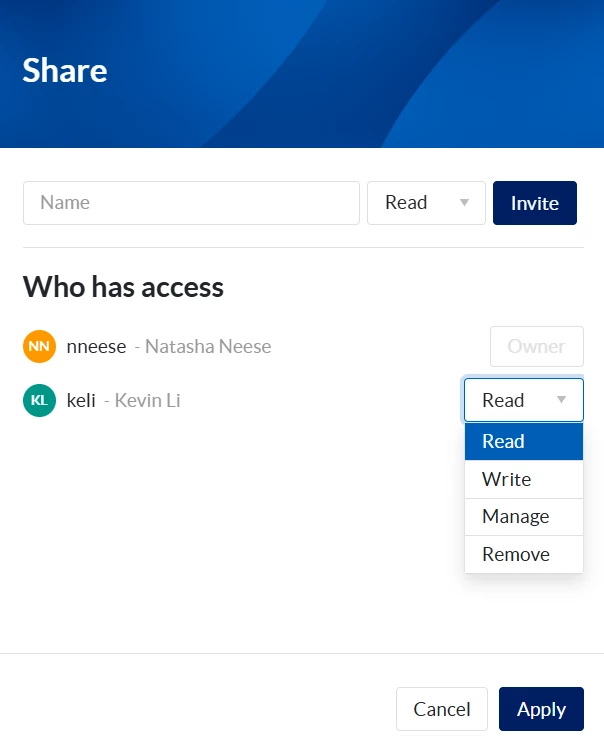
- The "Who has access" section shows everyone with current permissions
- Use the dropdown next to each name to:
- Change permission levels: Switch between Read, Write, and Manage
- Remove access: Select "Remove" to revoke access completely
- Click "Apply" to save changes
Changes take effect immediately. Users who lose access can no longer see the shared item in their Work Organizer.
Note: Revoking access only affects the original shared item. Any copies users saved to their own workspace remain intact.
Best Practices for Effective Collaboration
Use User Groups: Leverage user groups instead of sharing with individual users. This ensures automatic access for new team members, simplifies management, and maintains consistency across teams.
Organize with Folders: Structure related analyses and dashboards in folders before sharing. This provides context and makes navigation easier for your team.
Be Thoughtful with Manage Permission: Reserve Manage permission for trusted colleagues who need to help maintain shared content. Remember that they can delete entire folder structures, so grant this permission carefully.
The Principle of Highest Permission
TrendMiner always applies the highest applicable permission when a user has multiple permission entries for the same item. For example:
- If "Everyone" has Read permission on an item, but a specific user has Write permission, that user gets Write access
- If you share a folder with Read permission but individual items inside have Write permission, the user gets Write access to those specific items
- When sharing multiple items, existing higher permissions are always preserved
Looking Ahead
The evolution of sharing in TrendMiner—from simple read-only access to the complete collaboration suite—enables teams to work together more effectively and scale their analytics initiatives across the organization.
Have questions or tips about sharing in TrendMiner? Share your experiences in the comments below or reach out to the community!