



TrendMiner’s new webhook implementation allows users to alert an external system such as SAP, Microsoft Teams and potentially other platforms when certain events happen (i.e. when a TrendMiner monitor is triggered).
Beyond sending custom messages, webhooks can also initiate automated workflows or processes in external systems, such as creating work orders, submitting maintenance requests, or triggering other actions.
The example below shows how a TrendMiner monitor can detect the start of a new batch and automatically post notifications to a Microsoft Teams group, both at batch start and upon batch completion.
If you are interested in learning more and are interested in this new webhook integration available in 2025.R3 or newer, reach out to your CSM and/or Account Manager.
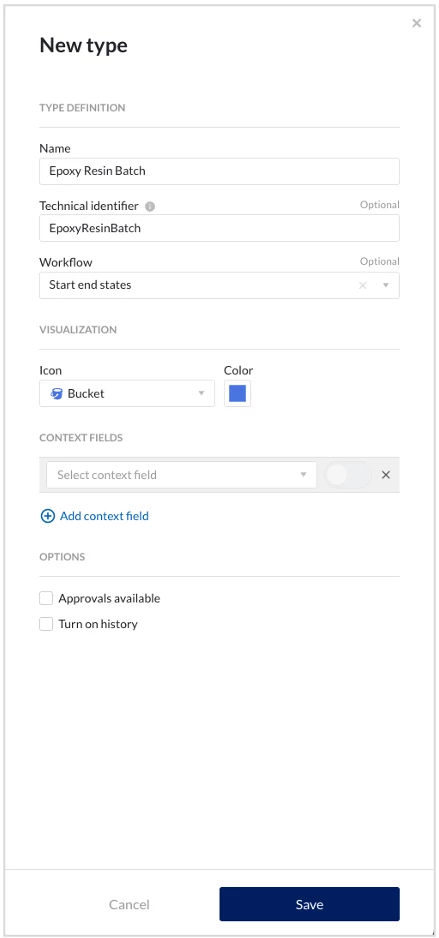
Step 1: Define a Context Item Type (for example, Epoxy Resin Batch).
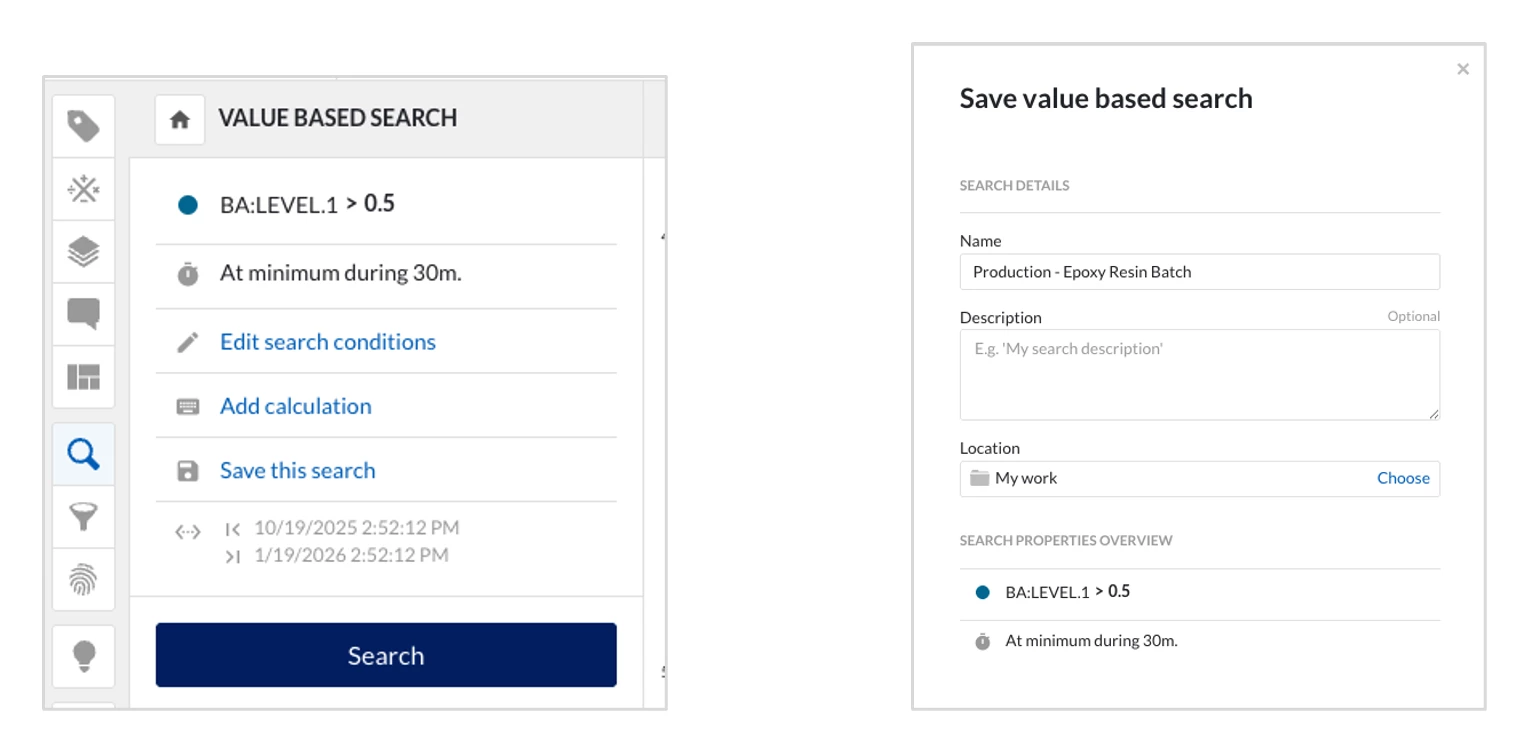
Step 2: Create & save a value-based search that reliably detects when a batch starts and ends.
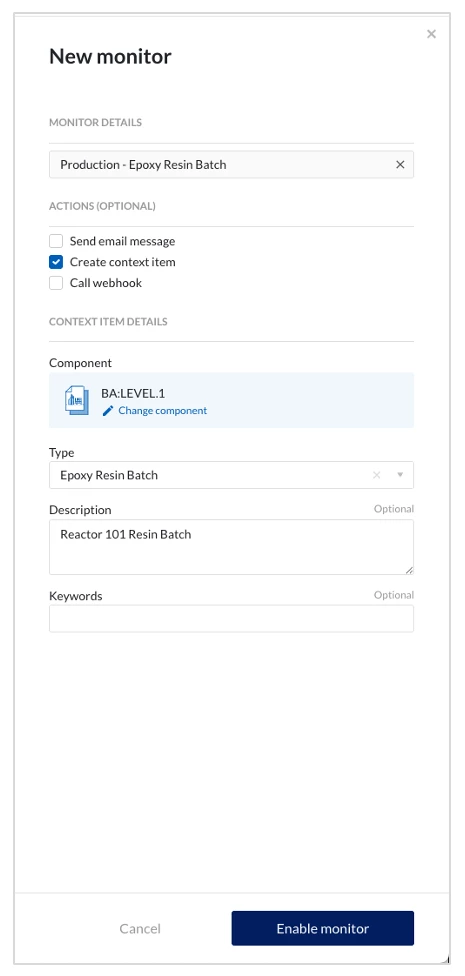
Step 3: Configure a TrendMiner Monitor to automatically generate a context item for each detected batch.
Step 4: Register a Webhook in TrendMiner.
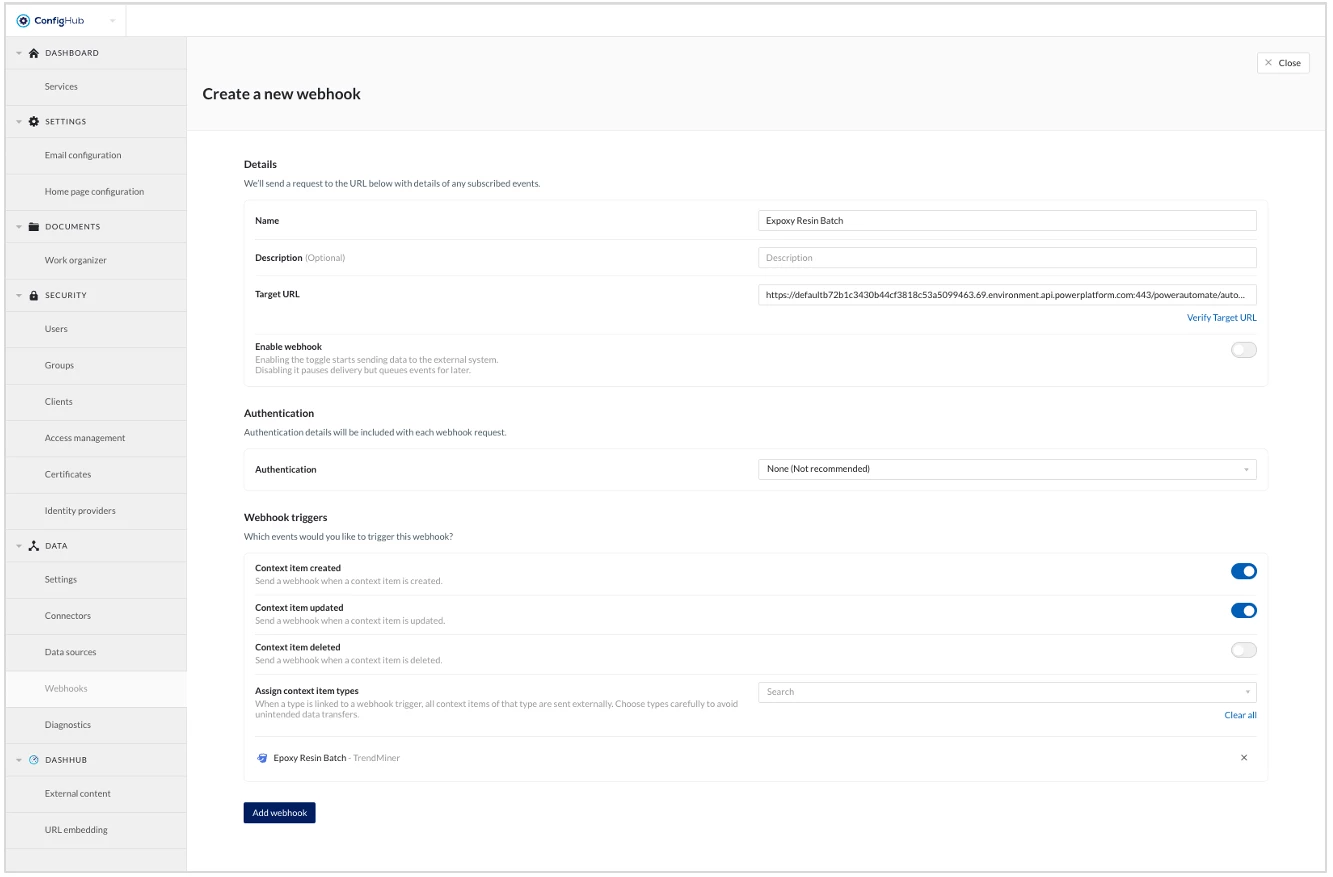
Target URL: this is the URL to which TrendMiner will send/post information.
For more on how to register a webhook and all the configurations, refer to the documentation.
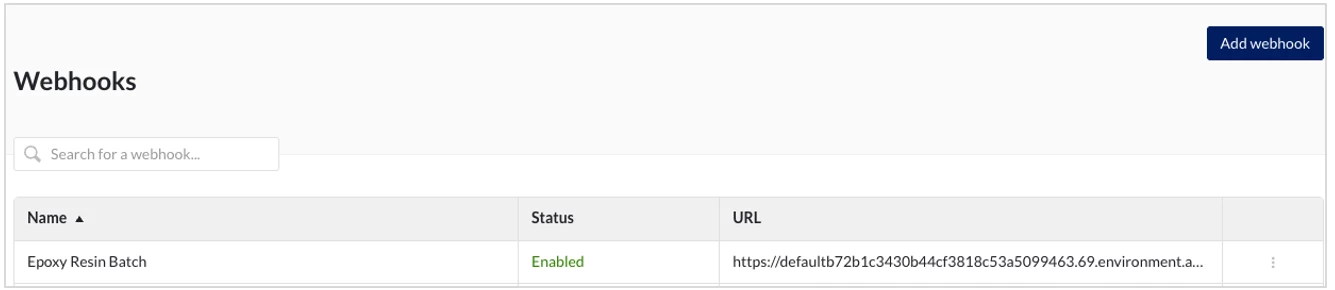
Step 5: Implement a webhook listener that receives requests from TrendMiner and triggers downstream actions (for example, posting a message in a Microsoft Teams channel).
How does this Power Automate flow work?
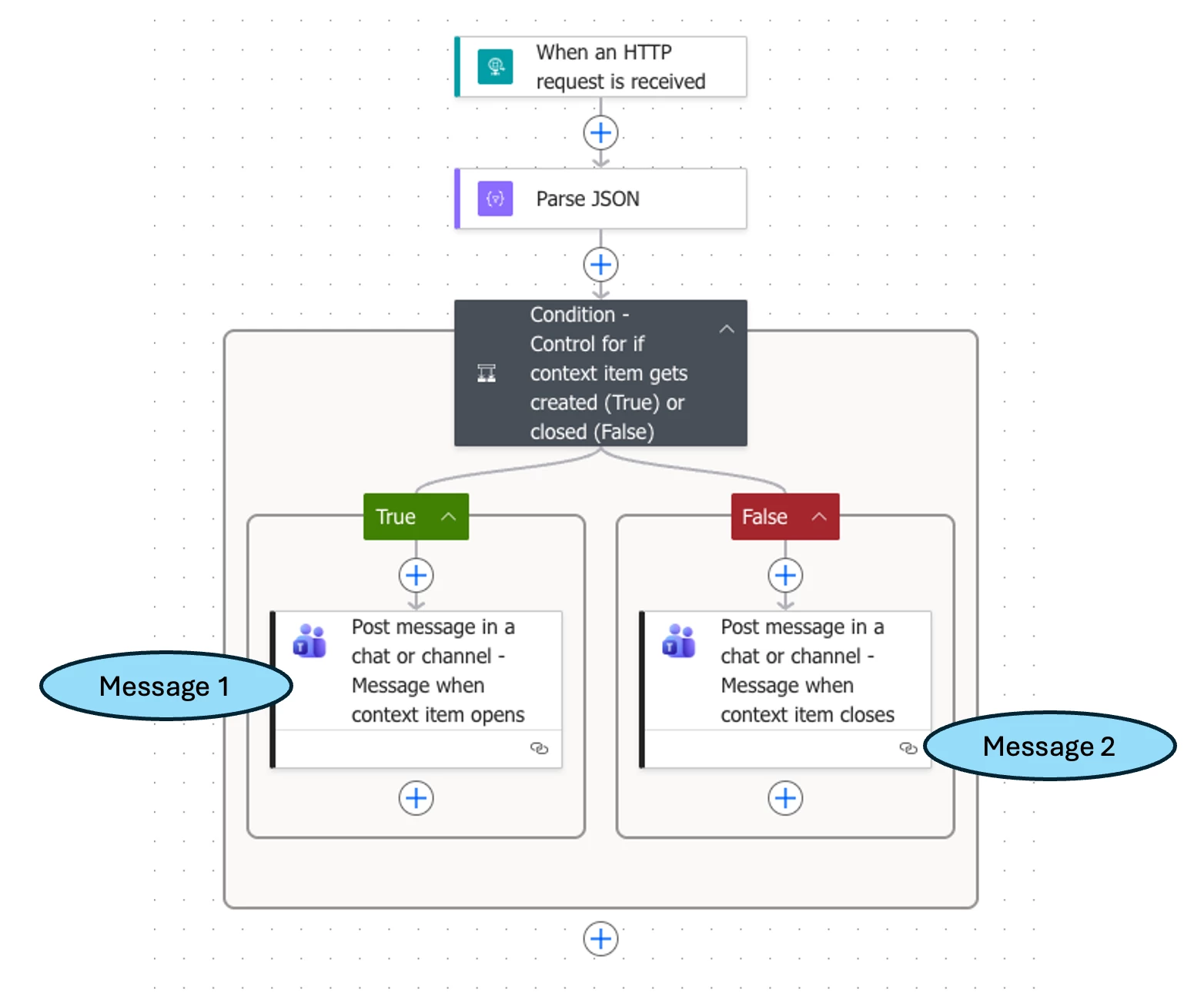
This flow continuously listens for incoming HTTP requests from TrendMiner and serves as the webhook listener. The first step generates the Target URL, which is used when registering the TrendMiner webhook.
After Power Automate receives the HTTP request, the flow parses the incoming payload. A condition action then determines which message to send based on the context item state. If the context item has just opened, the flow sends Message 1, notifying users that the batch is underway. If the context item has closed, the flow sends Message 2, informing users that the batch has completed and providing a direct link to visualize key process statistics for a predefined set of tags.

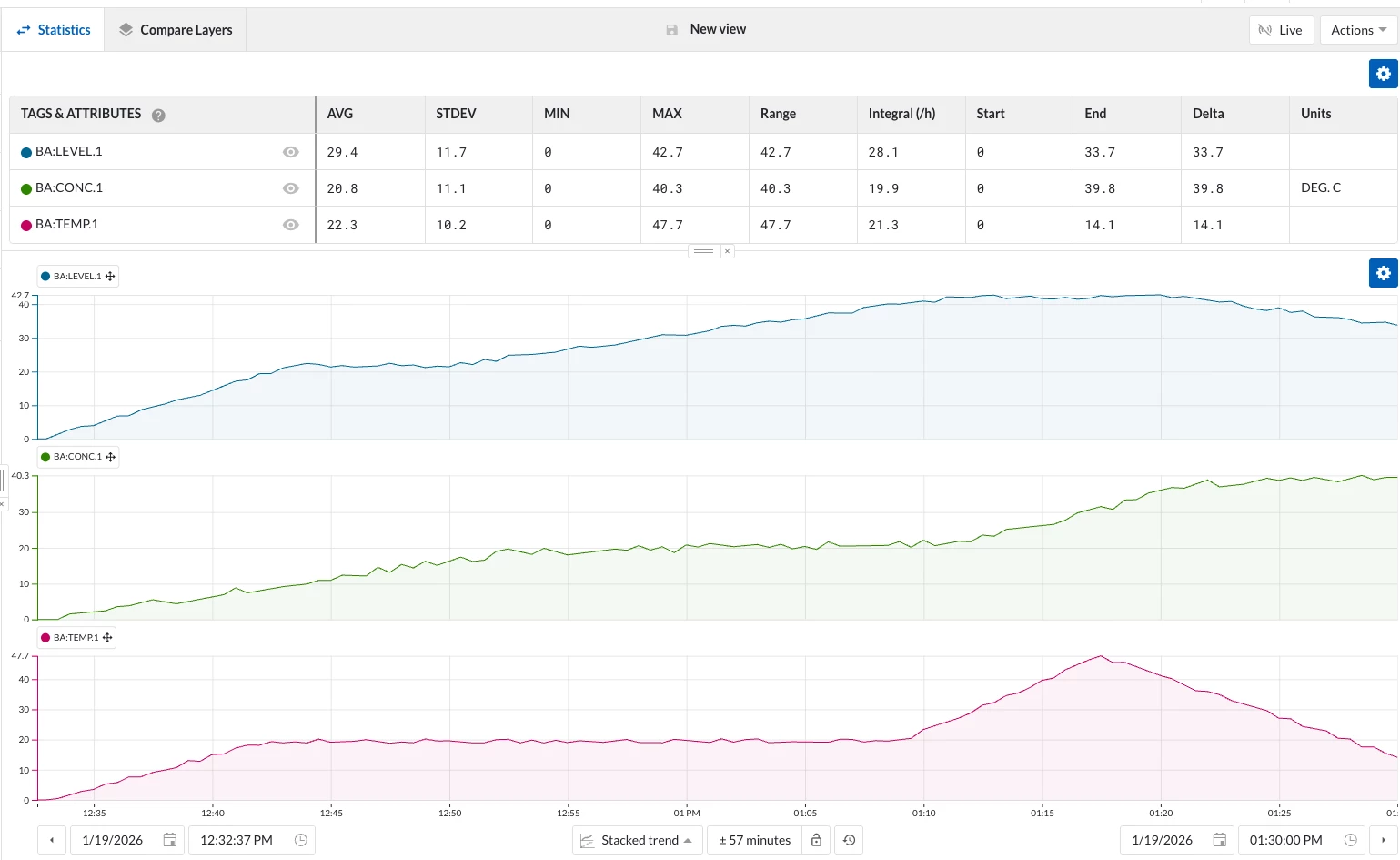
I’ve chosen Power Automate as it can serve as an easy webhook listener and integrates seamlessly with your Microsoft ecosystem. However, any webhook listener can provide similar functionality