



Walking up to a pump, a reactor or a filler line and having its live dashboard on your phone in seconds is now easy. TrendMiner can generate a QR code for any dashboard. Stick it on the equipment, scan it with your phone, and the dashboard opens in mobile mode.
Step 1: Create the QR code
Open the dashboard in DashHub. Click Actions in the top right and choose Share.
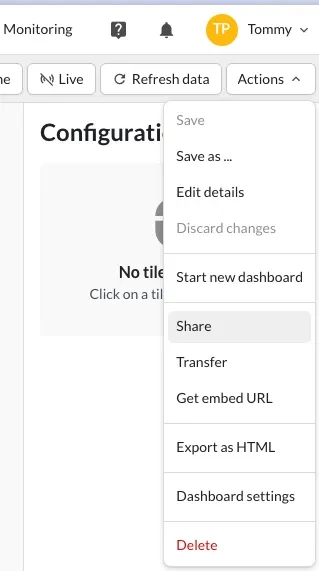
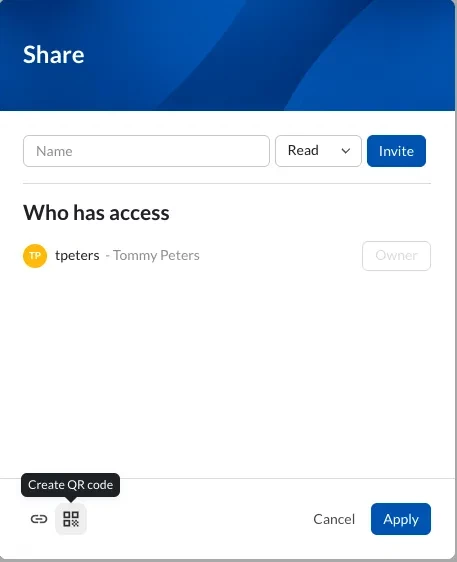
In the Share window, click the QR code icon in the bottom left corner.
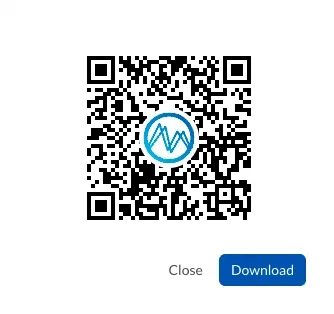
Your QR code appears. Click Download to save it as an image you can print, laminate or add to a label.
Before you print, check two things. First, make sure the people who will scan the code have access to the dashboard. You can invite them from the same Share window. Second, set a sensible default time frame on the dashboard, because that is what opens when someone scans it.
Step 2: Scan it in the field
Open TrendMiner in your phone’s browser and log in. You land on the mobile dashboard overview automatically. Tap the QR code icon inside the search field, point your camera at the code, and the dashboard opens right away.
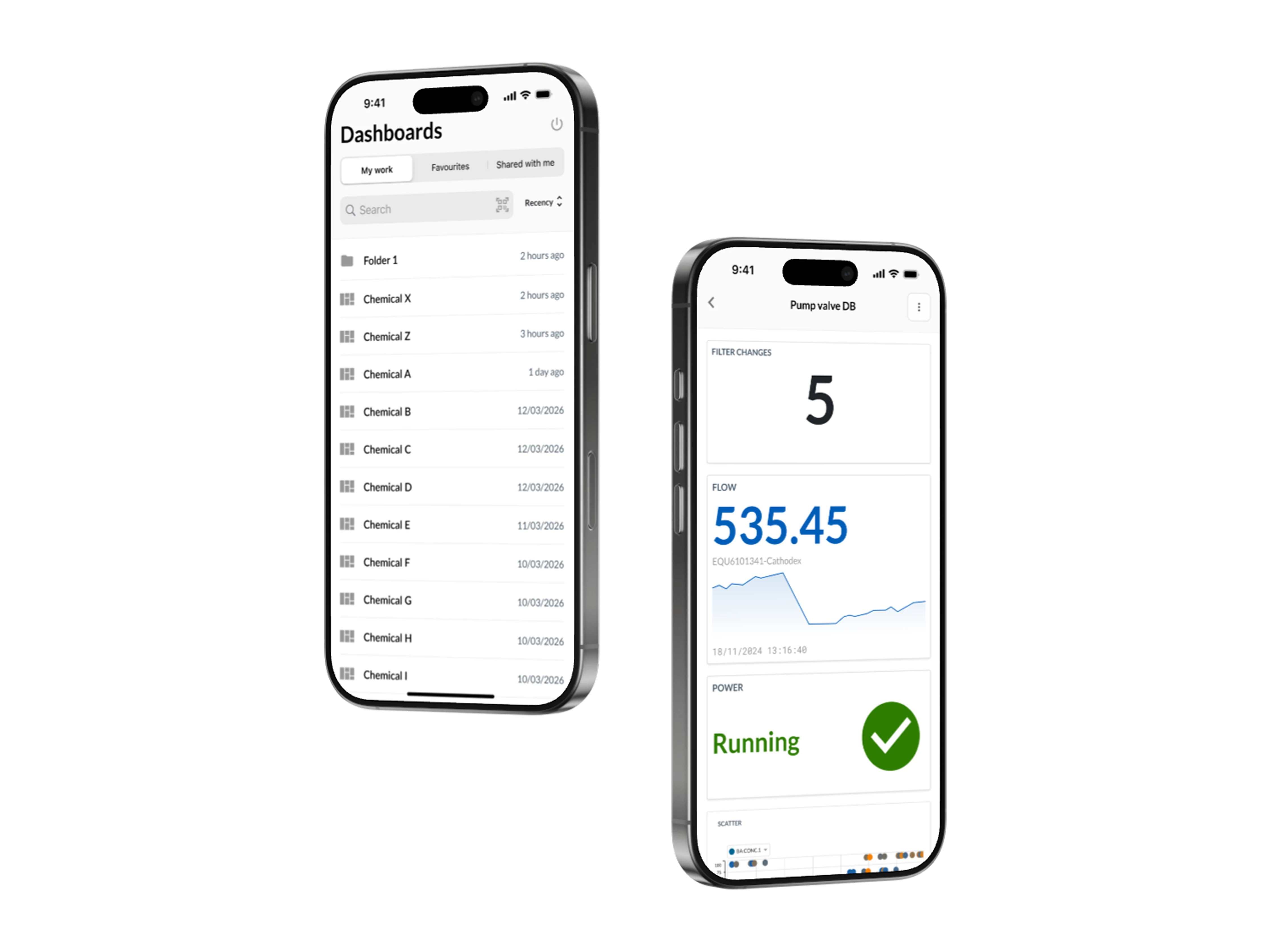
If your phone asks for camera access, allow it. If the code isn’t a valid TrendMiner dashboard code, you’re simply taken back to the overview.
What you can do on mobile
Mobile mode is built for checking, not editing. You can change the time frame (1H, 1D, 7D, Today or a custom range), switch on live mode so tiles refresh automatically, and tap a context item to see its details. Editing dashboards, tiles or context items stays on desktop. Mobile mode runs in your browser, and tablets keep the standard dashboard view.
Want the full picture? Read more about mobile dashboards in the User Guide.