
Solved

How to configure a Duration Alarm

  • June 3, 2026
  • 4 replies
  • 147 views

I am trying to set up a critical control point (CCP) real-time monitor for a sterilization process on a fermenter line.

My goal is simple: I want an alarm to trigger on our operator dashboard if the tank temperature stays above 120 outside of a strict 19-minute to 25-minute window. (i.e., if it is under-sterilized or over-sterilized).

There are no fields, dropdowns, or advanced criteria boxes on this screen that allow me to specify the 19-minute or 25-minute duration limits. It only allows me to select the Type (Information/Alarm) and type a text description. i want to check if it the time window exceeded and also didnt got up to the time window frame
 

Best answer by Daniel Münchrath

Hi Tim,

I am happy to hear that this was useful to you.

Some comments to the workflow I shared:

  • The context items will keep track of all sterilization processes running in that vessel (independent on the length). You can reuse those items for different applications as well.
    • One simple addition would be an overview of all sterilization processes, simply by not adding the duration filter.
    • You could extend it by creating the context item monitors for other processes/events as well (downtime, active production, etc.) or even other production lines to create even more holistic overviews. The Gantt visualization in ContextHub (and DashHub) is perfect to use in those cases.
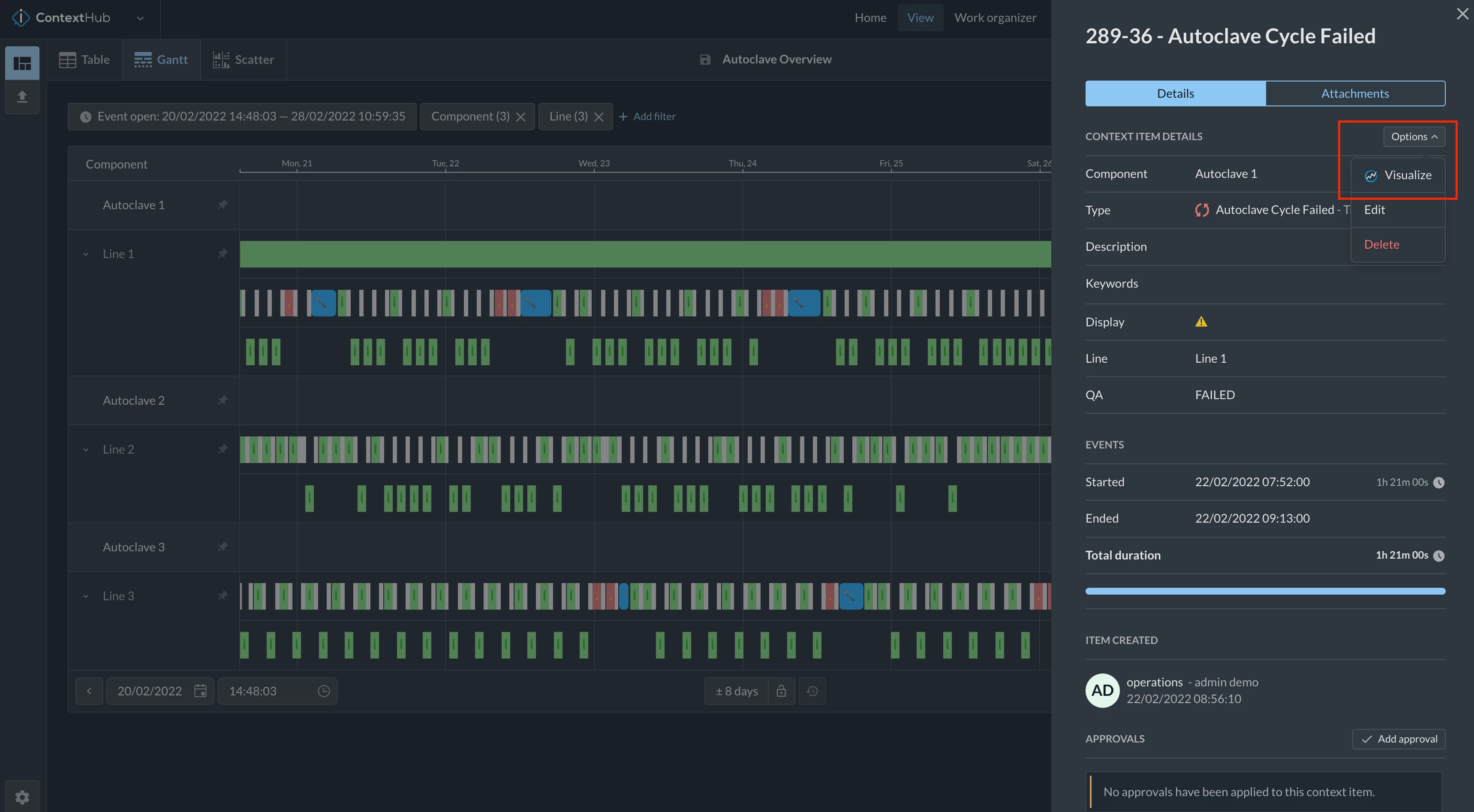
  • The context items can later be used to troubleshoot the too long or too short periods, as context item have a clickthrough functionality to visualize the time series behind those events: 
    Clickthrough to time series data via a single context item

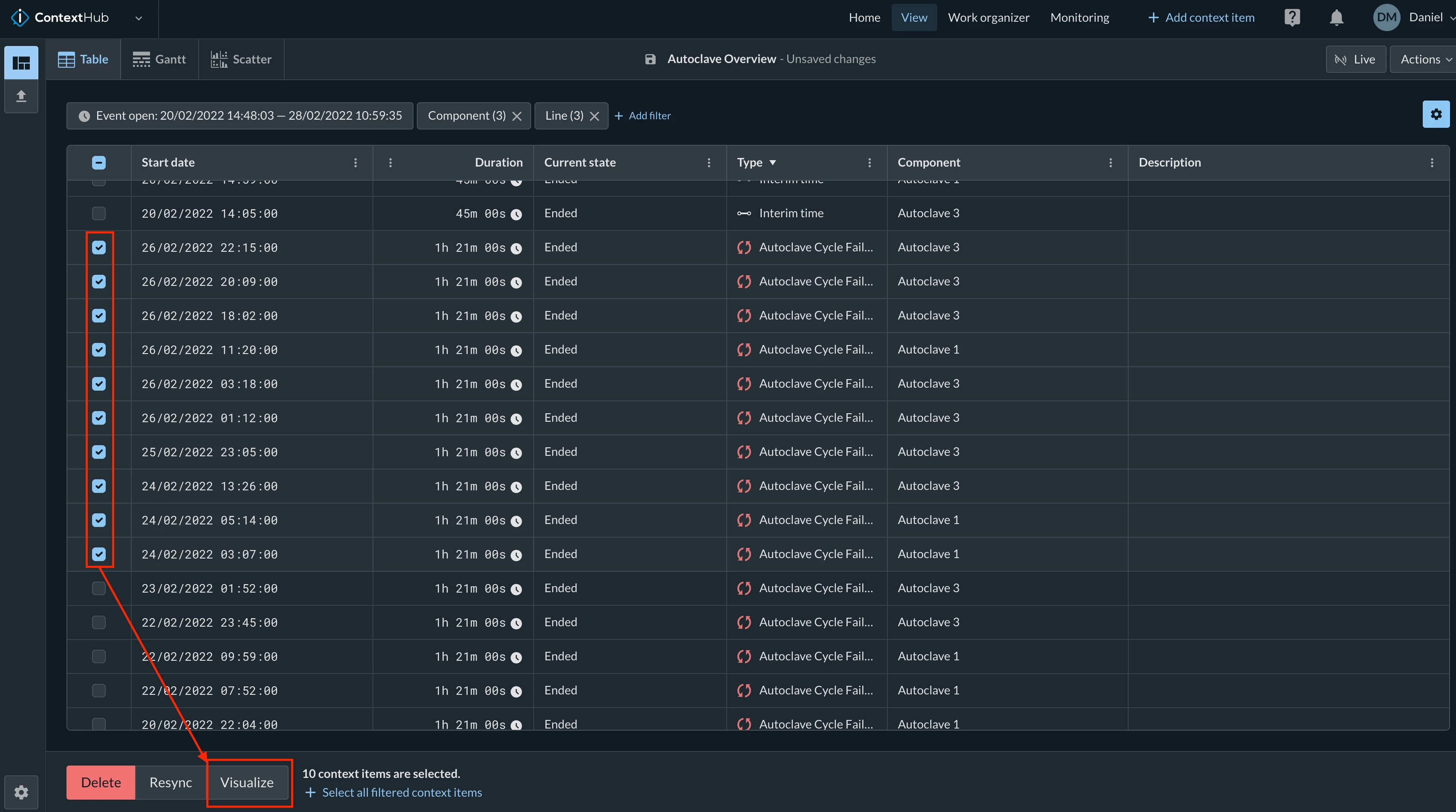
    Or even multiple events in the table view: 

    Visualizing multiple events via multiple selection in the table view


4 replies

Daniel Münchrath
Employee
Forum|alt.badge.img

Hi Tim,

the way I understand your objective is that something should appear on a dashboard that tells an operator that the sterilization time is either too short (<19 minutes) or too long (>25 minutes).

It is quite straight forward to create a monitor for the too long periods (Value based search on Temperature>120 for at least 25 minutes), but it is not for the too short periods.

A way to solve both cases at the same time is to utilize context items for all sterilization processes. These context items will show which periods were too long or too short and can be displayed as a table on the dashboard.


This can be done by doing the following steps:

  • create a value based search on your temperature>120.
  • save the search
  • create a monitor based on this saved search
  • use the “Create context item” option as an action, when the monitor detects a sterilization process
  • configure the context item type
    • use an appropriate context item type that makes sense in your case, or create a new one
    • use a component (Asset or Tag) that makes sense to you, you could just use your temperature tag here
    • feel free to add a description

Once you have the context item creation set up, you can keep track of the too short and too long periods by using a ContextHub view (please note that you will probably not see any items, as they are not yet created):

  • Create a new ContextHub view
  • Add a “component” filter, using the same component you chose above
  • Add a “context item type” filter, using the same type you chose above
  • Add a “current state” filter, to only include context items that are closed.
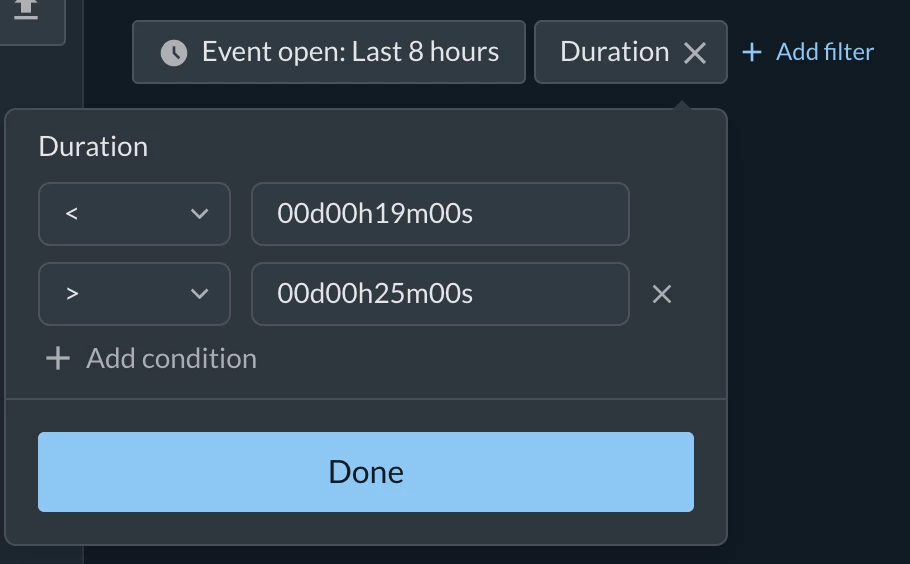
  • Add a duration filter to only catch the too long or too short sterilization periods:
  • Adjust the “Event open” filter to your likings
  • Save the ContextHub view


Now you can finally add this list of too long/short periods on to your dashboard, by simply adding a new ContextHub tile on the existing or on a new dashboard.

When you have the dashboard in live mode, the operators will see the list of sterilization periods that are either too short or too long. They will appear when the sterilization process is done.

Let us know your thoughts on this or if this solution works for your case.

Kind regards,

Daniel


  • Author
  • Innovator
  • June 8, 2026

Thank you very much for your insight as i was able to come up with something through your guidance


  • Author
  • Innovator
  • June 14, 2026

Hi Daniel

Wow this even explained much more thank you, still definitely will be asking more questions


Daniel Münchrath
Employee
Forum|alt.badge.img

Hi Tim,

I am happy to hear that this was useful to you.

Some comments to the workflow I shared:

  • The context items will keep track of all sterilization processes running in that vessel (independent on the length). You can reuse those items for different applications as well.
    • One simple addition would be an overview of all sterilization processes, simply by not adding the duration filter.
    • You could extend it by creating the context item monitors for other processes/events as well (downtime, active production, etc.) or even other production lines to create even more holistic overviews. The Gantt visualization in ContextHub (and DashHub) is perfect to use in those cases.
  • The context items can later be used to troubleshoot the too long or too short periods, as context item have a clickthrough functionality to visualize the time series behind those events: 
    Clickthrough to time series data via a single context item

    Or even multiple events in the table view: 

    Visualizing multiple events via multiple selection in the table view